










WiFi Security Cameras: The Complete Guide to Protecting Your Home and Business
Understanding WiFi Security Cameras and How They Work
WiFi security cameras have genuinely changed the game for homeowners and business owners who want to keep an eye on their property. Where you once needed a professional installer, a pile of cables, and a dedicated DVR just to get basic surveillance up and running, today’s WiFi cameras simply connect to your existing wireless network and send footage straight to your phone, a cloud server, or a local storage device. That shift has put real, capable security within reach of pretty much anyone — no technical background required, no massive budget needed.
The basic mechanics aren’t complicated. Your router connects the camera’s image sensor to whatever device you’re watching on. When motion trips the sensor — or when you just want to check in manually — the camera compresses the video and sends it across your wireless network as data packets. Most modern cameras support both 2.4GHz and 5GHz bands. The 5GHz option is faster and better for high-resolution streaming, while 2.4GHz has a longer range and handles walls and obstacles more gracefully.
What’s happening inside these cameras is actually pretty impressive. The onboard chip juggles a lot at once: compressing video with H.264 or H.265 encoding, switching on infrared night vision, running motion detection, and in some cases even doing AI-powered tricks like telling a person apart from a passing car. Getting a feel for what’s under the hood helps you shop smarter and makes sure the camera you pick is actually suited to where and how you’ll use it.
Key Features to Look for When Buying a WiFi Security Camera
Resolution is usually the first thing people check, and it matters more than you might think. A 1080p Full HD camera captures noticeably more detail than an older 720p model, and stepping up to 2K or 4K means you can actually make out faces and license plates at distances where lower-res footage would just be a blur. That said, higher resolution eats more bandwidth, fills up storage faster, and demands a stronger WiFi signal — so it’s worth thinking honestly about whether your setup can support it before you commit.
Night vision is just as important, especially for outdoor cameras or any interior space that gets dark regularly. Most cameras use infrared LEDs that illuminate a scene without any visible light, but the range and quality of that illumination can vary wildly. A budget camera might give you a grainy black-and-white image out to about 15 or 20 feet, while a premium model can push past 100 feet and may even offer color night vision using built-in spotlights that kick on automatically when they detect movement.
Beyond resolution and night vision, there are a handful of other features that are genuinely worth your attention: two-way audio so you can actually talk through the camera, the choice between local and cloud storage and what each one costs you over time, weatherproofing ratings if the camera is going outside, compatibility with smart home platforms like Alexa, Google Home, or Apple HomeKit, and whether the camera records continuously or only when something triggers it. These details add up and make a real difference in how useful and convenient your system actually is day to day.
- Resolution Options: 720p (basic), 1080p (standard), 2K (enhanced detail), 4K (premium clarity)
- Storage Types: MicroSD card (local), NAS device (network), cloud subscription (remote access)
- Power Sources: Wired AC adapter, rechargeable battery, solar panel, PoE (Power over Ethernet)
- Weatherproofing: IP65 (dust-tight, water-resistant), IP66 (powerful water jets), IP67 (temporary submersion)
- Smart Integrations: Amazon Alexa, Google Assistant, Apple HomeKit, IFTTT, Samsung SmartThings
Indoor vs. Outdoor WiFi Security Cameras: Choosing the Right Type
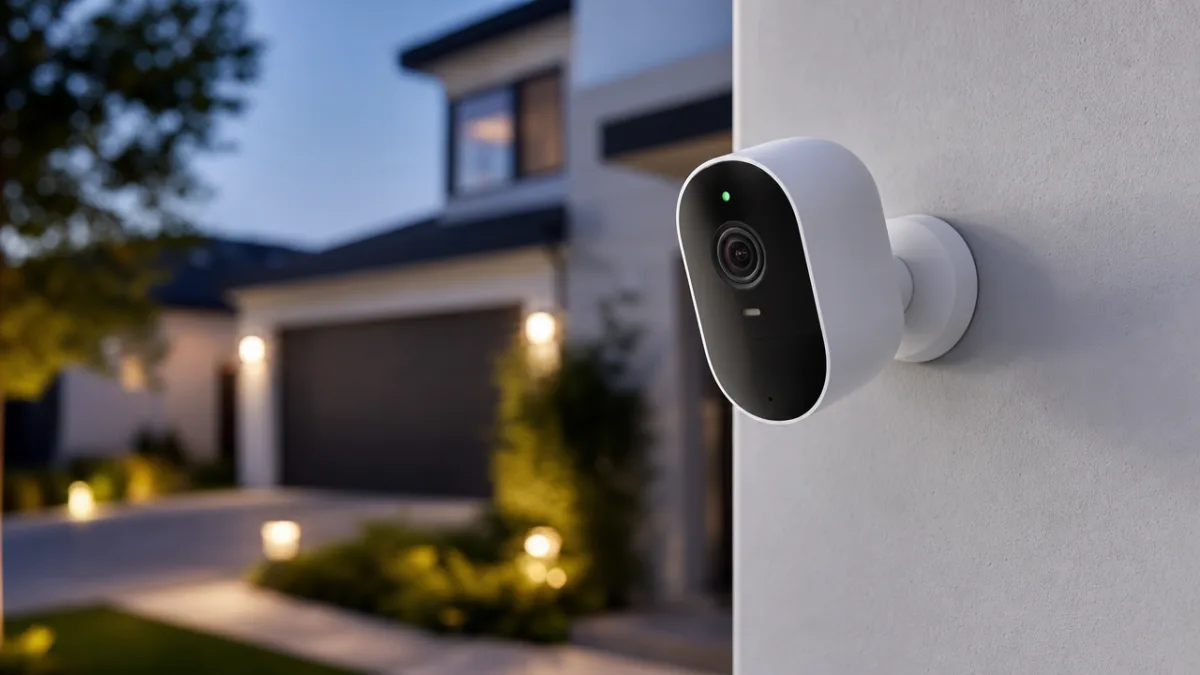
The indoor/outdoor distinction is about a lot more than just whether a camera can handle rain. Outdoor cameras have to survive real punishment — freezing winters, sweltering summer heat, direct sunlight beating down on the housing, humidity, and the occasional attempt to knock or pull them down. That’s why reputable outdoor models carry at least an IP65 weatherproofing rating, use UV-resistant materials, and come with wide-angle lenses built to cover the kind of large, open areas you’re typically watching outside, like driveways, yards, and entry points along the perimeter of a building.
Indoor cameras are designed with a completely different set of priorities: they’re smaller, quieter, and styled to blend in rather than stand out. A lot of indoor models include a pan-and-tilt motor that lets you reposition the camera remotely through an app, which is a great way to eliminate blind spots without installing multiple units. They also tend to put more emphasis on audio quality, which makes them useful beyond pure security — checking in on kids, elderly family members, or pets while you’re out is a common and genuinely handy use case.
Where you put these cameras matters just as much as which ones you buy. For outdoor cameras, entry points are the priority: front and back doors, the garage, driveway gates. Mounting them at eight to ten feet off the ground gives you a good angle on faces while making them harder to mess with. For indoor cameras, corners in high-traffic areas — living rooms, hallways, home offices — tend to give you the widest coverage. Thinking through placement before you start drilling holes saves you from having to redo things later and helps make sure you’re not paying for cameras that leave obvious gaps in your coverage.
Setting Up and Securing Your WiFi Camera Network
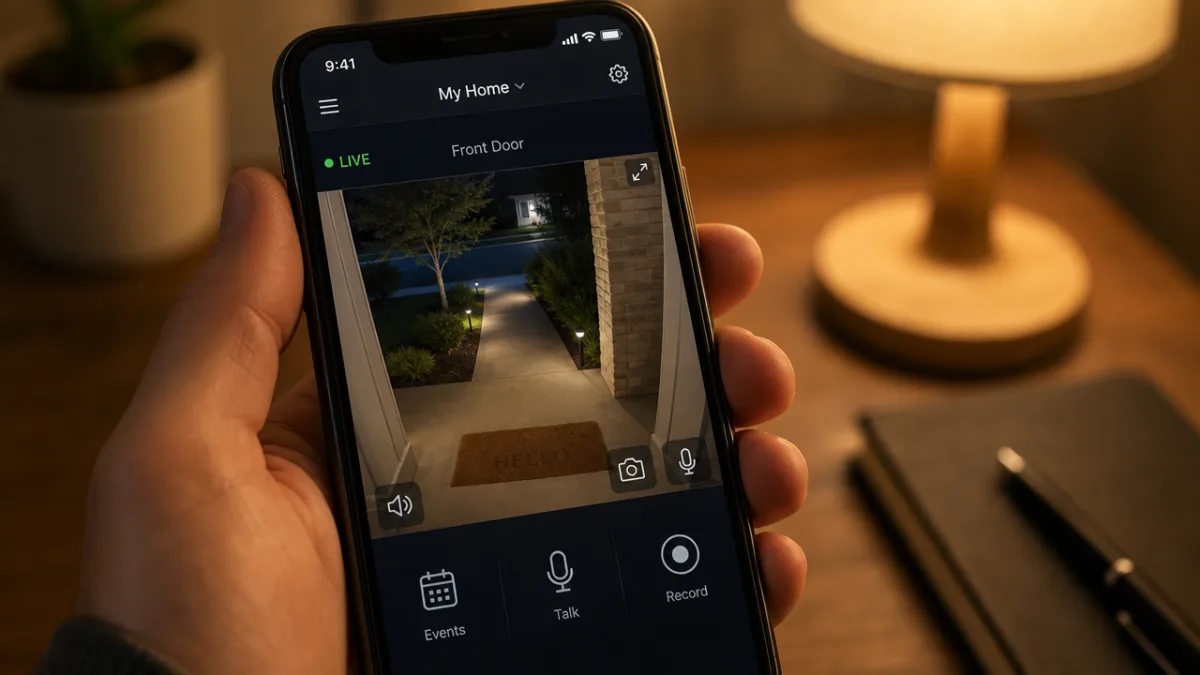
Getting a WiFi security camera up and running has become genuinely easy. Most modern cameras walk you through a setup process in their companion app — often just a QR code scan or a quick Bluetooth pairing — and you can be watching a live feed within a few minutes of unboxing. But don’t let the simplicity of installation lull you into skipping the security steps that come after, because a camera that isn’t properly locked down is a real vulnerability. Hackers have been caught accessing poorly secured cameras to snoop on private spaces or use them as a foothold into home networks, and it happens more than most people realize.
The single most important thing you can do right after setup is change the default username and password on the camera’s admin account. Factory defaults are publicly documented, and they’re the very first thing an attacker tries. From there, turn on two-factor authentication if the app supports it — it’s a small inconvenience that adds a meaningful layer of protection. Also update the firmware right away rather than waiting, and set it to update automatically so you’re not relying on yourself to remember to check for patches.
If your router supports it, putting your cameras on a separate guest network or VLAN is a smart move. It’s a bit more advanced, but the benefit is significant: if someone does manage to compromise a camera, they’re stuck on a network that’s isolated from your banking apps, work files, and personal devices. It’s also worth reading through your camera manufacturer’s privacy policy before you commit to their cloud service. Cloud-connected cameras are constantly sending footage to third-party servers, so knowing what’s stored, for how long, and who can access it is important — both for protecting yourself from outside threats and for understanding what the company itself does with your data.
- Download the manufacturer’s companion app and create a secure account with a strong, unique password
- Mount the camera in your chosen location and connect it to power via the supplied adapter or battery
- Follow the in-app setup wizard to connect the camera to your WiFi network using your router credentials
- Change the default device password immediately and enable two-factor authentication on your account
- Update the camera firmware to the latest available version through the app settings
- Configure motion detection zones, notification preferences, and recording schedules to suit your routine
- Test the camera feed, night vision, and two-way audio to verify full functionality before finalizing placement
Privacy, Legal Considerations, and Ethical Use of Security Cameras
Before you start pointing cameras everywhere, it’s worth spending a few minutes understanding the privacy laws that apply where you live. In most places, recording your own property — the interior of your home, your yard, your driveway — is completely legal. But once your camera’s field of view drifts into a neighbor’s yard, a public sidewalk, or shared areas in an apartment building, things can get legally murky depending on local rules. Audio recording adds another layer of complexity, since wiretapping and eavesdropping laws tend to be stricter than video surveillance laws in a lot of jurisdictions.
Letting people know they’re on camera isn’t just a legal requirement in many places — it’s simply the right thing to do. Hidden cameras in private spaces like bedrooms or bathrooms are off-limits essentially everywhere and carry serious criminal penalties in most countries. In workplaces where employee monitoring is legally allowed, being upfront about where cameras are and why they’re there builds trust and keeps you on the right side of the law. Posting a visible notice that CCTV recording is in effect is standard practice for any business running a camera system.
How long you keep your footage is worth thinking through carefully as well. Hanging on to weeks or months of continuous recordings from cameras that capture visitors, neighbors, or passersby means you’re sitting on a significant amount of other people’s personal data — and in regions covered by frameworks like the EU’s GDPR or California’s CCPA, that comes with real legal obligations. A sensible default for residential use is to set your cameras to automatically overwrite footage after seven to fourteen days. That’s usually more than enough time to review anything relevant after an incident, without the legal and ethical headaches that come with maintaining a long-term archive.
Top Brands and Recommended WiFi Security Camera Systems
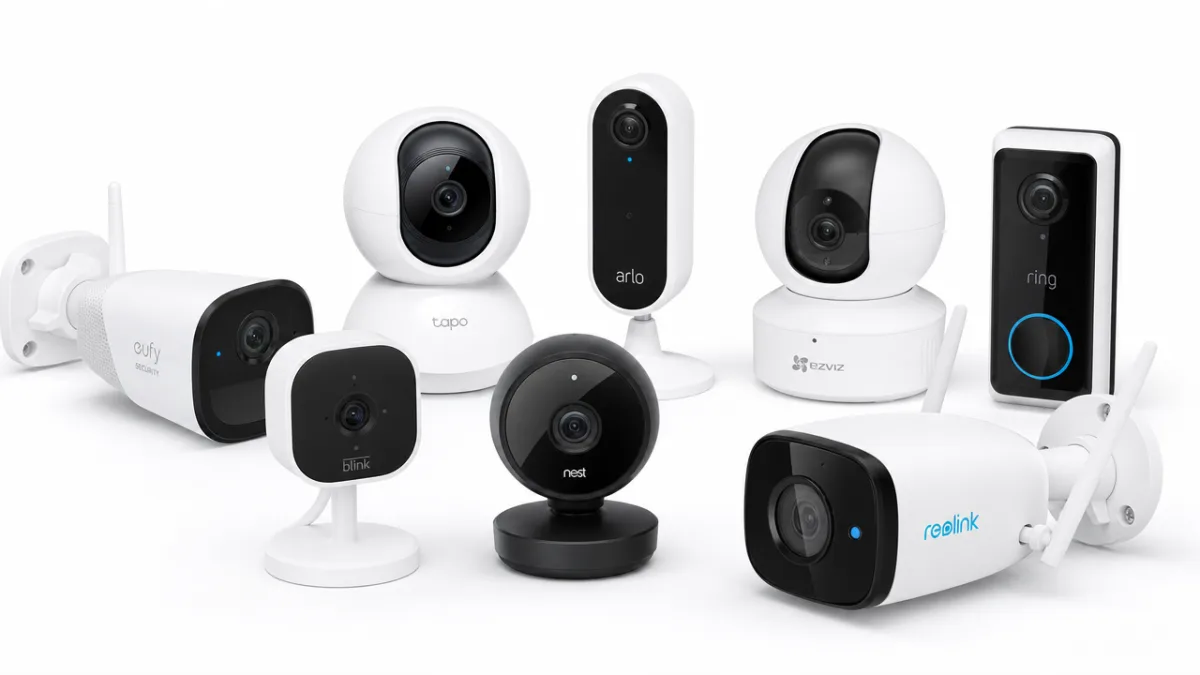
There’s no shortage of WiFi camera brands out there, which makes it genuinely hard to figure out who’s actually worth your money. Among the names that consistently come up in positive reviews, Arlo is hard to beat if you want premium wireless outdoor cameras. Their battery life is excellent, image quality in 2K and 4K is sharp, and the app is polished and reliable. The catch is that getting the most out of Arlo’s features means paying for a cloud subscription, which is worth factoring into your total budget upfront.
Google Nest cameras hit a nice balance between solid performance and tight ecosystem integration — if you’re already using Google Home or talking to Google Assistant, they slot right in. Ring, which is owned by Amazon, has built out one of the broadest product lineups in the consumer security space: doorbell cameras, floodlight cameras, indoor cameras, and optional professional monitoring, all tied together through Alexa. If you’re working with a tighter budget, Wyze and Reolink are worth a serious look. Both brands offer cameras that punch well above their price point, with features like local storage, color night vision, and two-way audio that other brands charge significantly more to deliver.
If you need something more capable — say, you’re managing a business or want a multi-camera system with a central recorder and advanced analytics — brands like Eufy, Hikvision, and Dahua are worth exploring. When you’re comparing any of these options, don’t just look at specs. Look at the company’s history of pushing out security patches, how they’ve handled past vulnerabilities, and what their customer support is actually like. A camera is only as good as the company standing behind it, and a brand that abandons its products after a year or two is a liability, not an asset.
The Future of WiFi Security Camera Technology
AI is probably the most exciting thing happening in the security camera space right now. Cameras are moving past simple motion detection and into genuinely intelligent monitoring. Today’s better models can reliably tell the difference between a person, an animal, and a passing car — which goes a long way toward cutting down on the flood of irrelevant alerts that used to make motion notifications more annoying than useful. Some systems now offer facial recognition that can spot unfamiliar faces on your property and alert you specifically, something that until recently was only available in enterprise systems costing a small fortune.
Edge computing is another trend that’s reshaping the industry in a quieter but meaningful way. Rather than shipping raw video to cloud servers for processing, cameras with strong onboard chips handle the analysis right on the device itself. The result is faster response times, less reliance on your internet connection, lower cloud storage costs, and better privacy since your footage doesn’t have to leave the camera unless you specifically want it to. As chip costs keep coming down and processing power keeps climbing, these edge AI features will start showing up in mid-range and budget cameras as a matter of course.
Looking further ahead, the integration of security cameras with smart home ecosystems and emergency services is where things get really interesting. Some manufacturers are already testing services that let verified footage be shared directly with law enforcement during an active incident, which could meaningfully close the gap between a crime being detected and a response being dispatched. And as 5G rolls out more broadly, cameras will benefit from faster, more reliable connections that support higher-resolution streaming, lower latency when you’re checking in remotely, and more robust cloud performance overall — cementing WiFi security cameras as a genuinely essential part of how we protect our homes and businesses.








What do you think?
It is nice to know your opinion. Leave a comment.